
Account Management
This FAQ provides essential information on account management, covering topics such as updating personal information, changing your password, and accessing account statements. Understanding these aspects of account management will help you stay in control of your investments and make informed decisions on BBAE.
Where can I find my account balance?
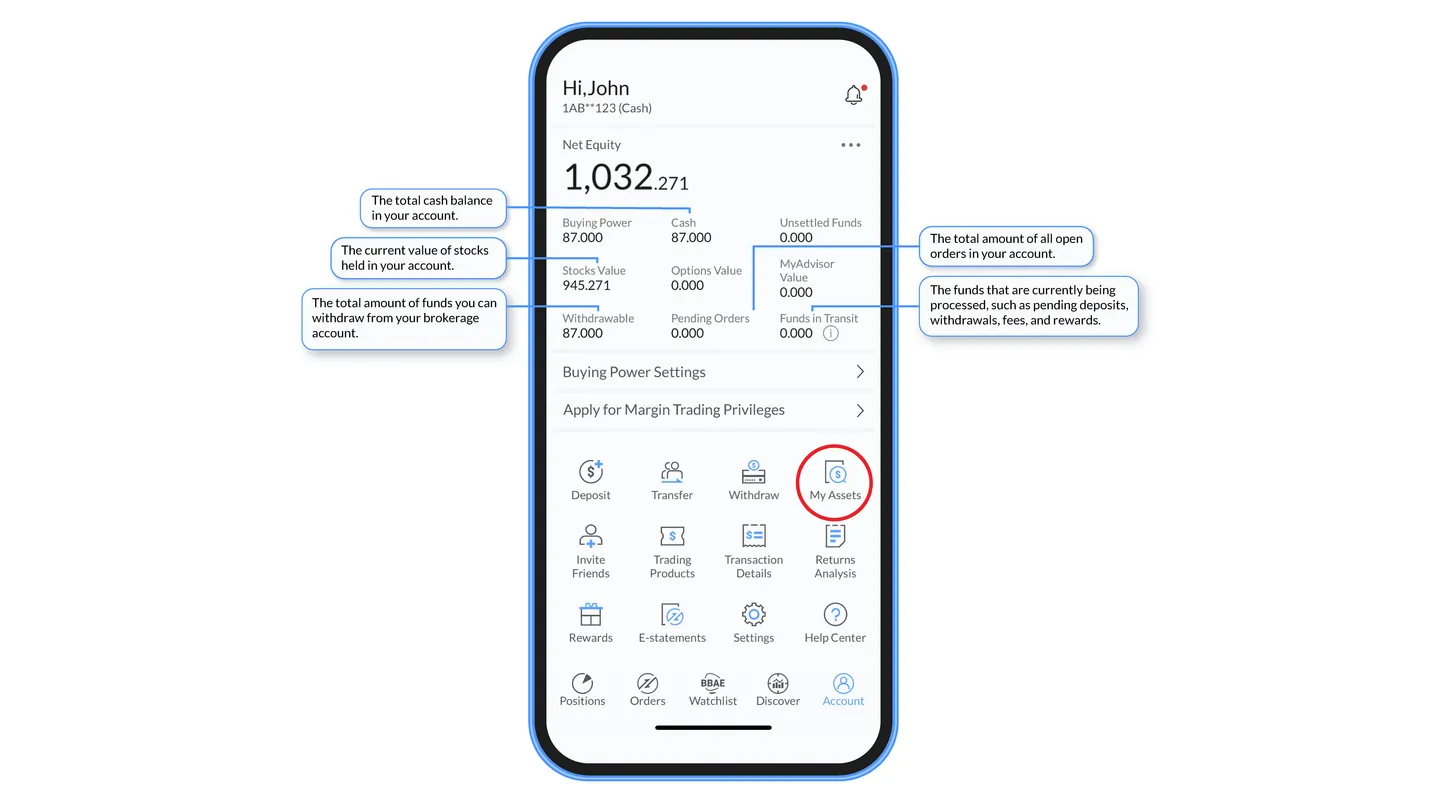
To begin, access the Account tab for a comprehensive overview of your account activity. Here, you can see updates on your stocks value, pending orders, cash balance and more. You can also utilize the My Assets tab to see an overview of your account positions. Please refer to the Glossary to learn more about different factors influencing your account balance.
Where can I find my BBAE account number?
For security reasons, your complete account number is concealed within the main Account page.
However, there are two methods to locate it:
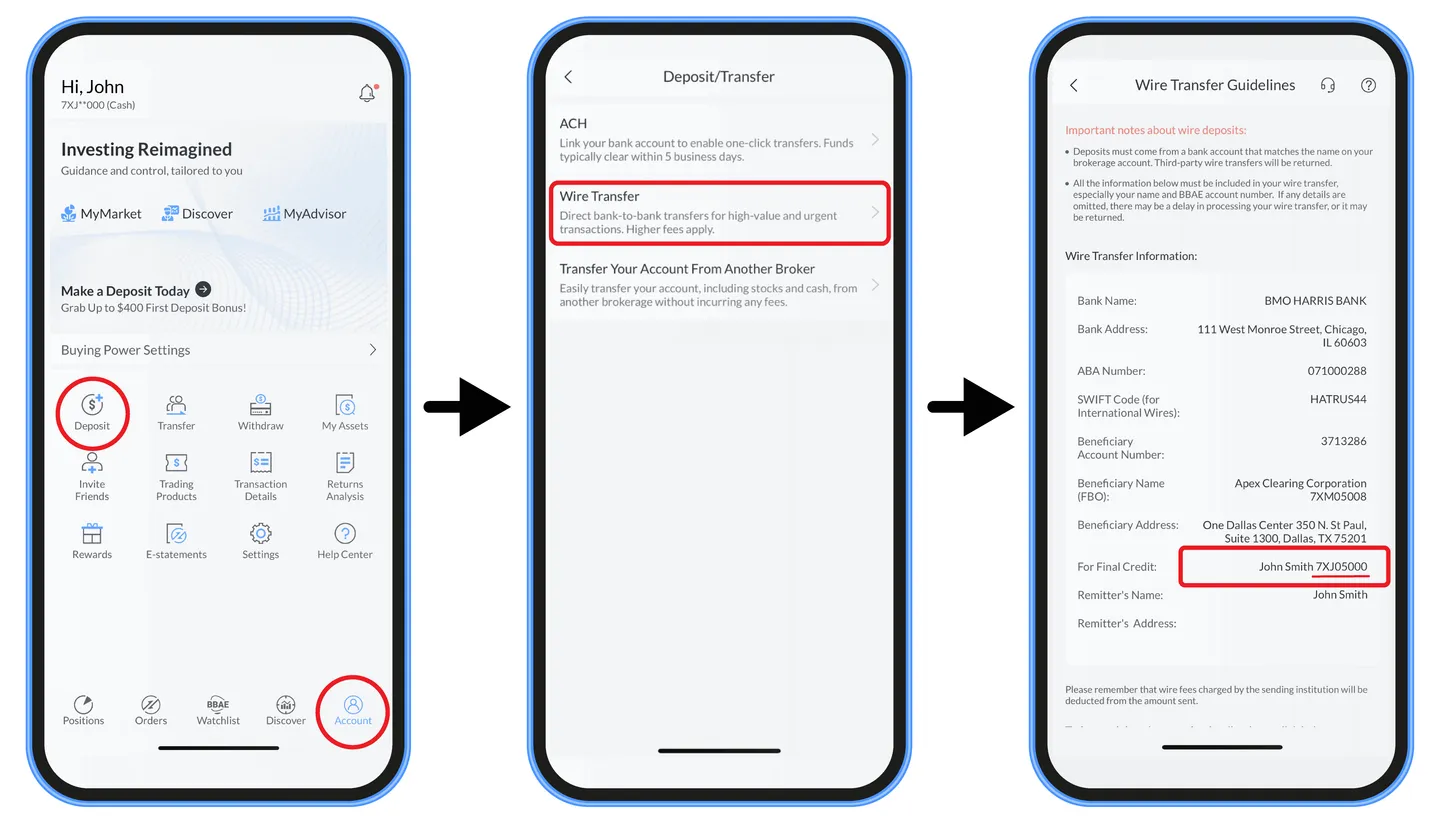
- Navigate to Account, then Deposit, and choose Wire. Your account number will be displayed under ‘For Final Credit’ next to your name, beginning with a 7X.
- OR, on the same Account tab, go to E-Statements and choose Account Statements. Your account number will be found in the top left corner of your account statements.
I forgot my password; how can I change it?
To change your password, make sure you are logged out of your account (Account – Settings – Sign Out) and follow these steps:
- Go to Account and then select Sign In/Sign Up.
- Select Sign In.
- Click the Forgot Password link and follow the prompts.
I have a cash account but would like to change it to a margin account. What should I do?
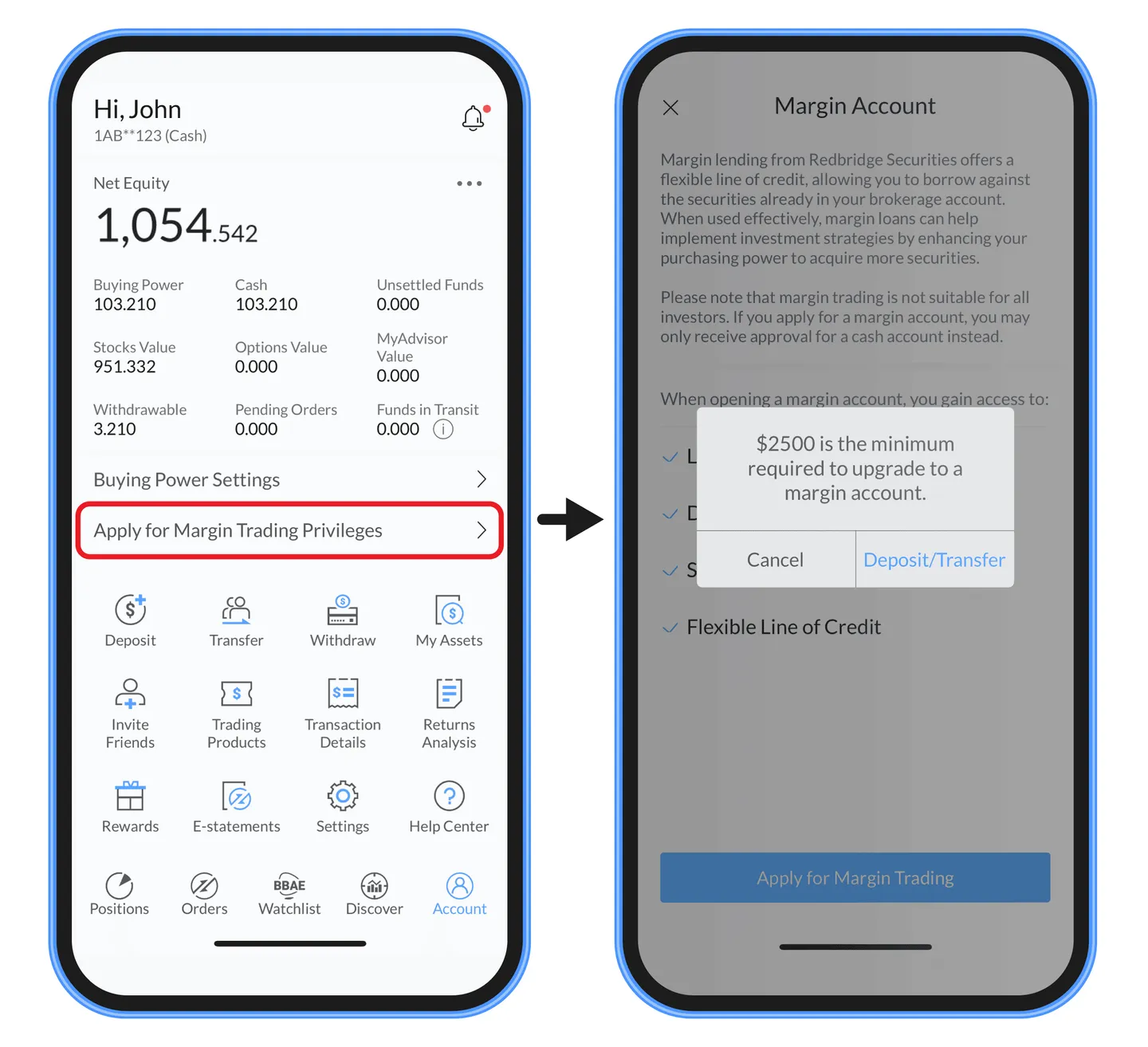
Navigate to the Account section and then click the text that says, “Apply for Margin Trading Privileges”. Please note that you will only see this option if you have funds in your account. To learn more about margin privileges, please click here.
How do I apply for options trading?
To apply for options trading, you must meet specific criteria, such as maintaining a minimum account equity of $1,000 for Level 1 options, for instance. Once you meet this requirement, you can proceed to apply for options. Simply search and select any stock, then click the Options button. You will be guided through a brief options questionnaire to submit your application. For more information on options trading, please click here.
How can I access account statements and trade confirmations?
To view and download your account statements or trade confirmations, follow these steps:
In the BBAE App:
- Open the app and go to the Account tab on the main page.
- Select E-Statements.
- Choose either Trade Confirmations or Account Statements.
- You can download individual statements or confirmations in PDF format and email them to your preferred destination.
Online:
- Visit https://trading.bbae.com/docs and log in with your account credentials.
- Select either Account Statements or Trade Confirmations.
- Download individual statements or confirmations in PDF format to save directly to your device.
How can I access tax documents?
To view and download your tax documents, follow these steps:
In the BBAE App:
- Go to the Account tab.
- Select E-Statements.
- Choose Tax Documents.
- You can download individual tax documents in PDF format and email them to your preferred destination.
Online:
- Visit https://trading.bbae.com/docs and log in with your account credentials.
- Select Tax Documents.
- Download individual tax documents in PDF format to save directly to your device.
Note: Tax documents for a specific year are generally available by March of the following year. For instance, tax documents for 2023 will typically be accessible by March 2024.
Can I upload my tax documents directly into TurboTax?
Yes, you can directly upload your tax documents into TurboTax by following these steps:
- Go to TurboTax and begin your tax return
- Select the ‘Federal’ section, locate the “Stocks, Mutual Funds, Bonds, Other” category, and click on “Edit/Add”.
- For the company name, input the name of BBAE’s clearing firm, “Apex Clearing Corp.“
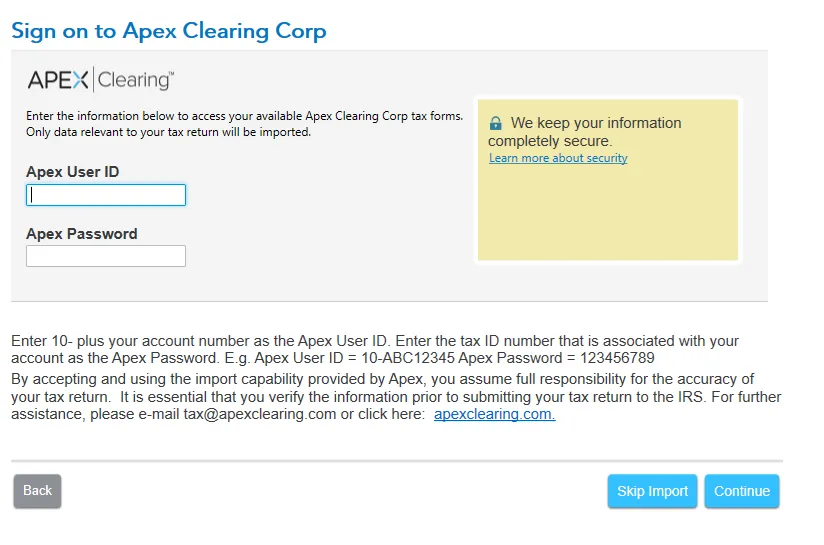
- When prompted, enter your Apex login credentials:
- User ID: Add ’10-‘ before your BBAE account number (e.g., 10-7XJ05000).
- Password: Use your Social Security Number.
- Proceed to upload your trade information.
Disclaimer: The information provided above is intended solely for informational purposes and does not constitute tax advice. BBAE is not responsible for providing tax guidance. Tax laws and regulations are complex and subject to change, which can materially impact investment results. Please consult a qualified tax advisor for personalized advice before uploading any documents or making tax-related decisions.
How do I update expired documents?
You will receive a notice from us informing you that your documents have expired or are about to expire. This notice will be sent via email, app notification, or both, depending on your account settings.
Please follow these steps to update:
- Ensure you have the updated versions of the required documents ready for upload.
- Log in to your account and navigate to the document upload section from the notice
- Follow the prompts to upload your documentation
If you have any questions or need further assistance, please contact our support team.
How do I enroll in electronic document delivery?
All accounts are enrolled in electronic document delivery unless you request otherwise at the time of account opening. This means you will receive all communications electronically, including trade confirmations and account statements, which is more convenient and environmentally friendly.
What if I am not receiving electronic notices and am getting paper mail instead?
If our messages have been rejected for delivery, your account will automatically switch to receiving paper mail. This is usually because your email provider has marked our messages as spam.
Please note that there are fees associated with paper mail: $2 for each trade confirmation and $5 for each statement.
Why was I charged a Paper Statement Fee?
A Paper Statement Fee may be charged when account statements are mailed to you instead of delivered electronically.
Accounts are set up for electronic delivery (e-Delivery) by default. However, if an electronic communication sent by our clearing firm is returned as undeliverable, for example, because of an invalid email address, a full inbox, or an email provider delivery issue, your account may be switched to paper delivery so that you continue to receive your account statements.
Please note that clearing firm communications are delivered separately from communications sent directly by our firm. You may successfully receive emails from us while an electronic communication from our clearing firm is returned as undeliverable.
The Paper Statement Fee covers the costs associated with printing, processing, and mailing the statement.
How can I avoid the Paper Statement Fee?
The best way to avoid Paper Statement Fees is to keep your e-Delivery preferences active and make sure your email address is accurate and able to receive account communications.
To help prevent delivery issues:
- Confirm that the email address listed on your account is current and accurate.
- Make sure your inbox has enough storage to receive new messages.
- Check your spam or junk folder for account communications.
- Promptly update your account information if your email address changes.
- Add the following email addresses to your safe-senders list:
- documents@digital-delivery.com
- uscl_conf_mbox@investordelivery.com
- uscl_1099_mbox@investordelivery.com
- uscl_stmt_mbox@investordelivery.com
- prospectus_mbox@investordelivery.com
- id@proxyvote.com
How can I re-enroll in electronic delivery if my account is currently receiving paper mail?
To re-enroll in electronic document delivery, please contact our support team. They will assist you in switching back to electronic document delivery and provide you with a list of email addresses to add to your contacts. This will help ensure our emails are not marked as spam and will help you avoid the additional fees associated with paper mail.
How do I change my personal information?
To update your personal information, please follow these steps:
- Access Your Account: Tap on the Account tab.
- Navigate to Settings: In the Account section, find and select the Settings option.
- Personal Information: Scroll down until you find the Personal Information section.
- Update Details: Tap on the specific details that you wish to update or change.
Before you can submit any changes, we will send a verification code to your registered phone number or email address. This is an essential security measure to confirm your identity and protect your information. Once you have entered the verification code, you will be able to submit your changes.
How do I change my password?
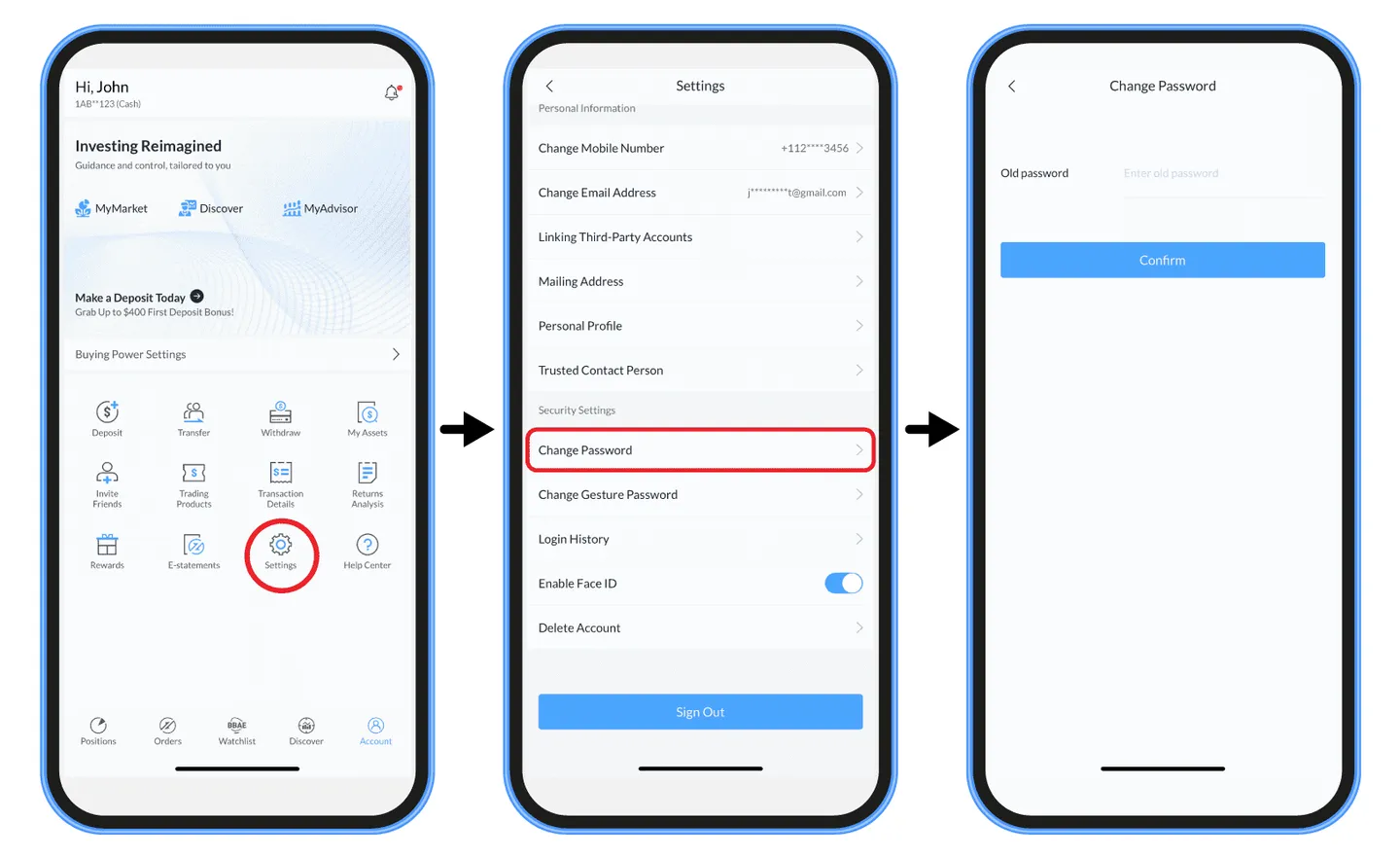
To change your password, please follow these steps:
- Go to Account and then Settings.
- Scroll down to Security Settings and select Change Password.
- Input your old password.
- Input your new password.
After selecting “Change Password,” you will be prompted to input your current password or gesture password and then create a new one. Please remember that a strong password enhances the security of your account.
What should I do if my verification code expires before I can enter it?
If your verification code expires before you can enter it, go back to the verification page and request a new verification code. Ensure you enter the new code promptly, as verification codes are only valid for twenty minutes.
If you continue encountering issues with the verification code, please contact our support team for further assistance.
What should I do if I get an error message when entering the verification code?
If you receive an error message when entering your verification code, it may be due to one of the following reasons:
• Incorrect Code Entry: Double-check that you have entered the code correctly. Make sure there are no extra spaces or typos.
• Expired Code: Ensure that you enter the code within the twenty-minute validity period. If the code has expired, request a new one.
• Too Many Failed Attempts: If you have entered the verification code incorrectly too many times, the system may lock you out for security purposes.
• Check Spam or Junk Folders: If you’re not receiving the verification code, it might be in your spam or junk folder.
Steps to Resolve the Issue:
• Verify Code Accuracy: Carefully re-enter the code, ensuring each number matches exactly as provided.
• Request a New Code: If the code has expired, request a new verification code and try entering it again.
• Contact Support: If you continue encountering issues or receive an error message stating that you are locked out, please contact our support team for further assistance.
How do I set my gesture password?
To set your gesture password, follow these steps:
- Place your finger on any of the 9 dots.
- While keeping your finger on the screen, drag it to form a pattern connecting at least 3 dots (more are acceptable).
- Release your finger to complete the pattern. For example, you can create an L shape with 5 dots or a straight line vertically or horizontally with 3 dots.
- You will then be prompted to reproduce the same gesture to confirm and save the password.
How do I unlink my bank account?
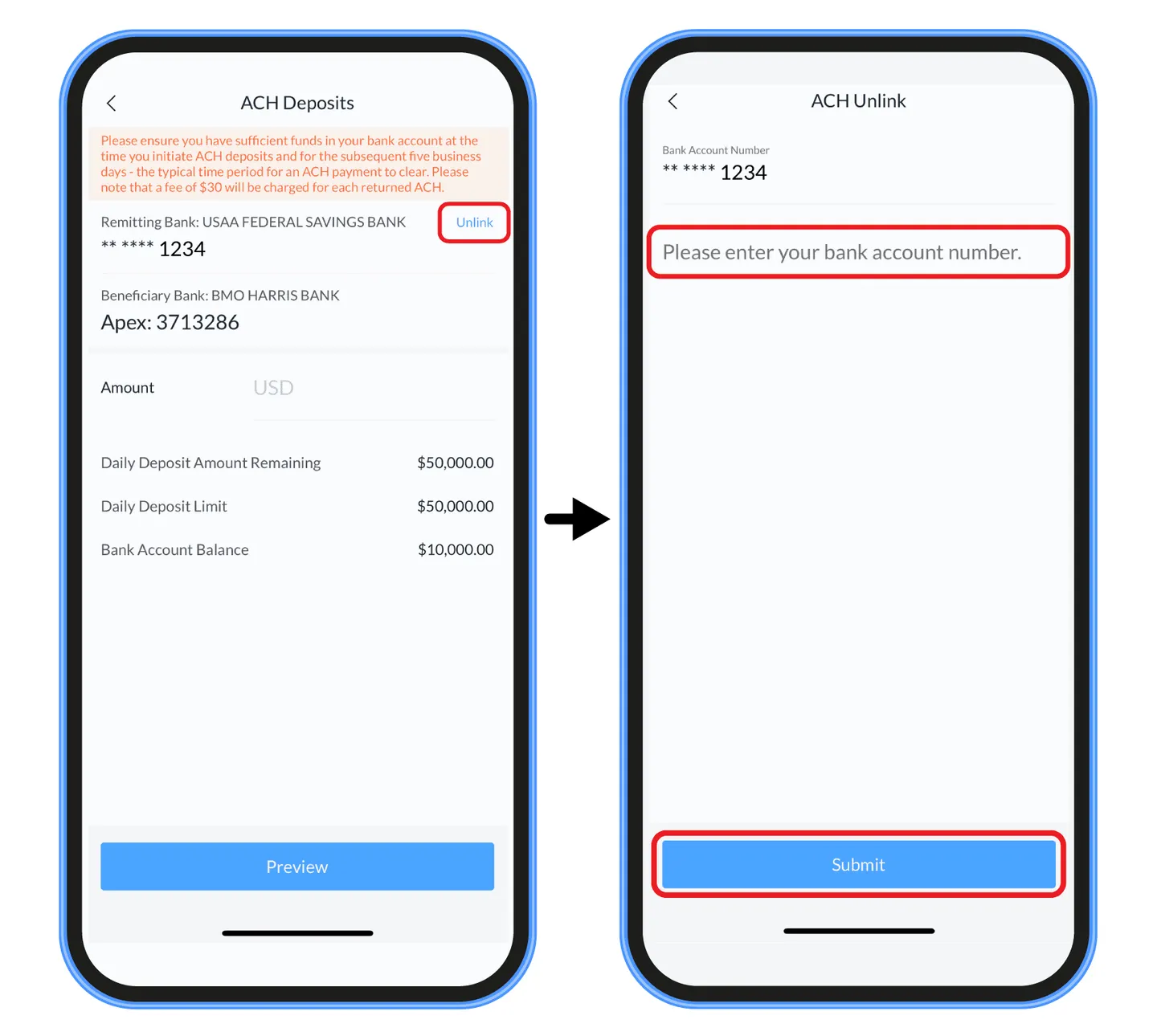
Please follow these steps to unlink your bank account:
- Navigate to the Account tab.
- Select Deposit and then choose ACH.
- Click on the option to unlink your bank account next to Remitting Bank.
Please note that there is a 60-day waiting period after your last ACH transaction before you can unlink your bank account.
How do I close my account?
Closing your BBAE account involves a few key steps:
- Clear Your Account: First, ensure that all positions in your account are closed and withdraw any remaining funds. Your account must have a zero-dollar balance and no open positions before proceeding to the next step.
- Submit a Request: Once your account is clear, you can submit an account closure request via email to support@bbae.com. Alternatively, you can contact us via phone or online chat.
After your account is closed, you will still be able to log into the app, but no historical records will be available. However, you can access your statements, tax documents, and trade confirmations by logging into trading.bbae.com/docs with your account credentials.
Please note that these documents are retained for a period of time as required by regulations, but not indefinitely. Therefore, it is important to download any documents you may need in the future before you close your account. Rest assured; your information will not be used for anything other than fulfilling our regulatory obligations.
How do I delete my account so I can no longer login?
Deleting your BBAE account login is a separate process from closing your account. If you wish to delete your login, here is what you need to do:
- Clear Your Account: First, ensure that all positions in your account are closed and withdraw any remaining funds. Your account must have a zero-dollar balance and no open positions before proceeding to the next step.
- Request Deletion: Email your request for account login deletion to support@bbae.com.
Remember, once your login is deleted, you will no longer be able to access your account or retrieve any statements, tax documents, or trade confirmations from trading.bbae.com/docs. Therefore, we highly recommend downloading any important documents you may need in the future before requesting an account deletion.
Should you need to request account documents after your login has been deleted, please email us at support@bbae.com. We will then determine whether these documents are still available. Be aware that account documents and additional records are kept for a specific period as required by regulations, but they are not retained indefinitely.
Rest assured that your information will not be used for any purpose other than fulfilling our regulatory obligations.
I’m a non-U.S. tax resident. How do I know if I’ve submitted a W-8BEN form, and how can I update it?
If you opened your account as a non-U.S. tax resident, a Form W-8BEN is typically generated and completed during the account opening process based on the information you provided.
In most cases, no further action is required if your account was successfully opened under a non-U.S. status.
Your Form W-8BEN remains valid for three years. Prior to expiration, you will receive a notification prompting you to review and resubmit the form if needed.
If your tax residency status changes or you need to update your Form W-8BEN before it expires, please contact our support team for assistance.